Use roles to assign access-level permissions to users. While few roles are available by default in erwin DI Suite, you can create custom roles.
The Administrator role is system-generated and you cannot edit or delete it.
To create roles, follow these steps:
- Go to Application Menu > Data Catalog > Resource Manager.
- Click the Roles tab.
- Click
 .
. - Enter the Role Name and Role Description.
- Role Name: Data Steward_UK
- Role Description: The role has access to the Resource Manager and Mapping Manager.
- Under the Permissions Tree section, select the check box for the modules or the permission object to which you want to grant access to the role.
- Click Save.
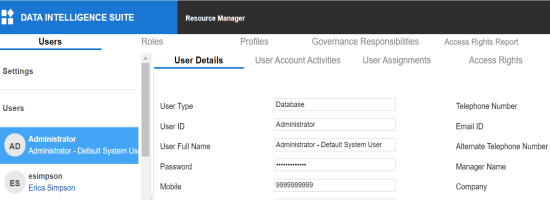
The Resource Manager page appears. By default the Users tab opens.
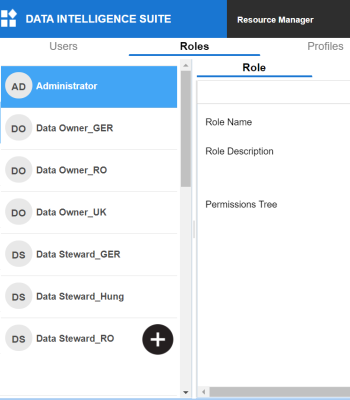
The Role page appears.
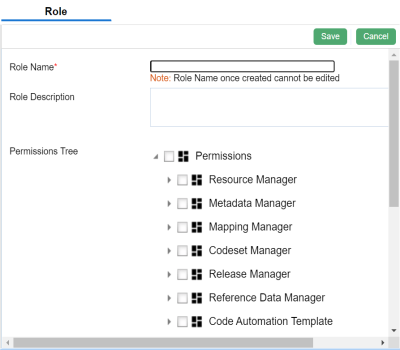
For example:
A role is created and added to the Roles list.
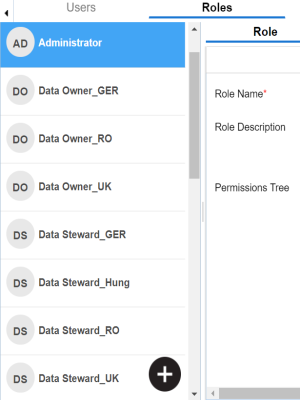
Once a role is created, you can:
You can also manage roles by using the options available on clicking the role. Managing roles involves:
- Editing roles
- Deleting roles
- Cloning roles
|
|
|
Copyright © 2021 erwin, Inc. All rights reserved. Copyright © 2021 Quest Software Inc. All rights reserved. All trademarks, trade names, service marks, and logos referenced herein belong to their respective companies. |